Define and use Kubernetes Resources
When it come to execution of AI tasks, either batch jobs or model serving, it is important to be able to allocate an appropriate set of resources, such as memory, GPU, disk etc.
For this purpose the platform relies on Kubernetes functionalities and resource definitions. More specifically, the run configuration may have a specific requirements for
- volumes (Persistent Volume Claims and Config Maps)
- HW resources in terms of CPU and memory requests and limits, numbers of GPUs
- Additional secrets and environment variables to be associated with the execution
How to define resource requirements
In the platform, kubernetes resource requirements may be defined in two ways: * by users at run time, by requesting resources to be allocated for a given run, * by administrators at deployment time, by configuring defaults and limits along with pre-configured templates and profiles
Request resources at runtime
The platform lets users require additional k8s resource to be allocated to a given function's run, either via Core UI or via SDK. Please note that it is possible to describe only some properties, leaving the rest blank without constraints. All the defaults are managed by the platform in accordance with the underlying Kubernetes deployment.
In the Core UI, resource requirements can be assigned when creating a run:
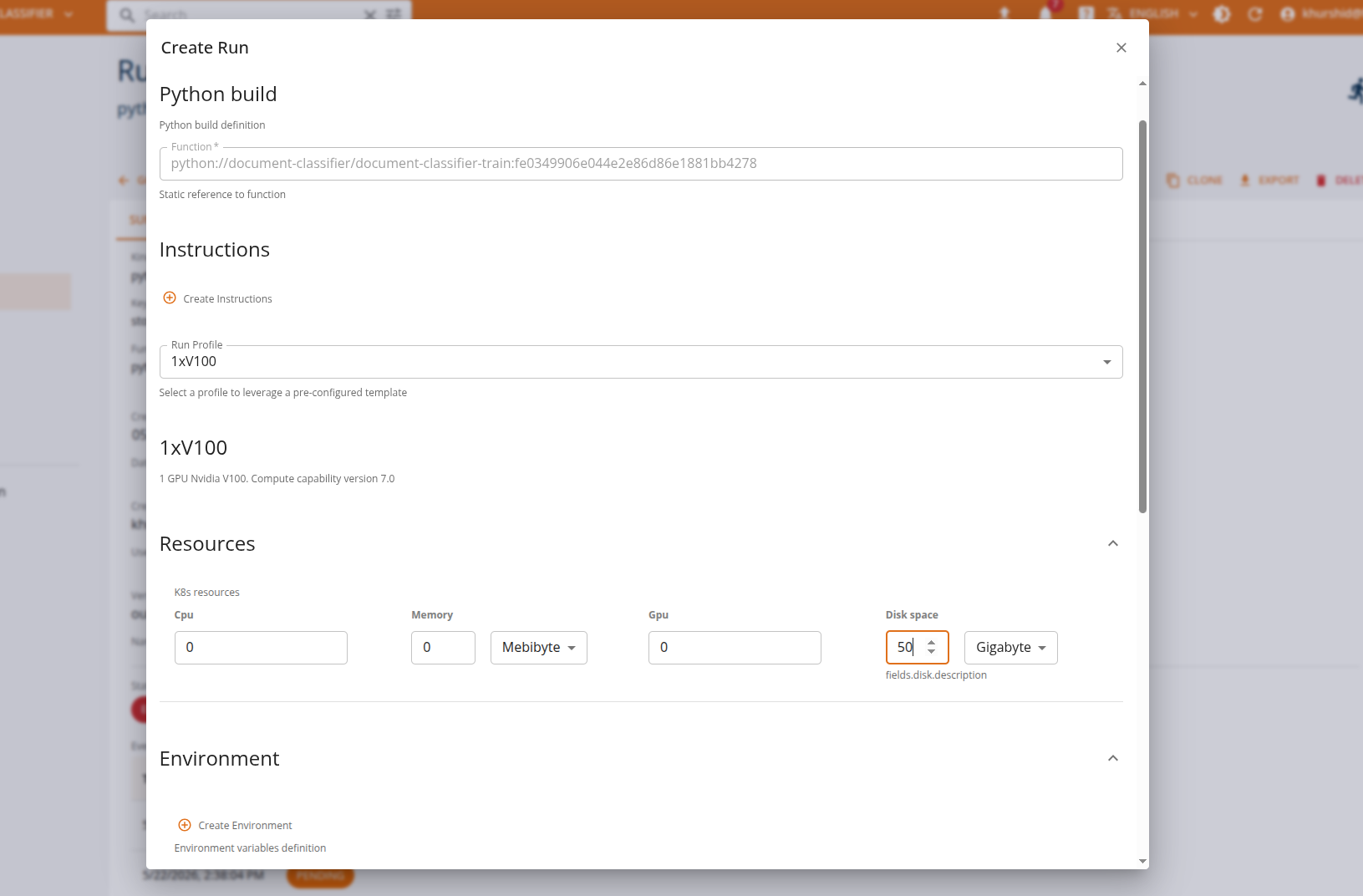
To define requirements for single runs, developers need to include in the run specification the resource definition, in accordance with the schema.
For example, to request for a certain amount of compute resources, the spec must contain the detailed definition as follows:
resources:
  cpu: "8"
  mem: 32Gi
  gpu: "1"
  disk: 10Gi
To configure resources from a Jupyter workspace using the SDK, you can use a run definition like the following:
run = func.run(
    action="job",
    fs_group="8877",
    args=[...],
    resources={"mem": "32Gi", "cpu": "6"},
    volumes=[{
        "volume_type": "persistent_volume_claim",
        "name": "volume-deforestation",
        "mount_path": "/app/files",
        "spec": {
             "size": "350Gi"
        }
    }]
)
In order to provide such definitions, users can leverage the SDK or the Core UI to programmatically or interactively define their request. Please see the Kubernetes Resources section of the documentation for more information.
Resource templates and profiles
It is possible to rely on a set of preconfigured HW profiles defined during the platform deployment. The profile allow for abstracting the platform users from the underlying complexity. Each profile corresponds to a specific resource configuration that defines a combination of requirements. For example, the profile may define a specific type of GPU, memory, and CPUs to be used. In this case it is sufficient to specify the corresponding profile name in the run execution configuration to allocate the corresponding resources.
To specify a profile from a Jupyter workspace using the SDK, you can define the run as follows:
train_run = func.run(
    action="job",
    inputs={"input1": value},
    profile="1xa100",  # selected hardware profile
    resources={"mem": "6Gi"},
    volumes=[{
        "volume_type": "persistent_volume_claim",
        "name": "train-volume",
        "mount_path": "/local-data",
        "spec": {
            "size": "10Gi"
        }
    }]
)
The mechanism of profiles is described in the administration section of the documentation and is managed by the platform admins. Please see Resource templates section of the documentation for more information.
Please note that the requirements defined in the template have priority over those defined by the user and are not overwritten.
Available resources
The section lists all the resources available to users for runs.
Volumes
Users can ask for a persistent volume claim (pvc) to be created and mounted on the container being launched by the task.
You need to declare the volume type as persistent_volume_claim, a name for the PVC for the user (e.g., my-pvc), the mount path on the container and a spec with the size of the PV to be reserved.
The platform will create the volume and bind it to the pod lifecycle.
volumes:
        - volume_type: "persistent_volume_claim",
          name: "my-pvc",
          mount_path: "/data",
          spec:
            size: "10Gi",
To configure a volume from a Jupyter workspace using the SDK:
run = func.run(
  action="job",
  volumes=[{
    "volume_type": "persistent_volume_claim",
    "name": "my-pvc",
    "mount_path": "/data",
    "spec": {
      "size": "10Gi"
    }
  }]
)
Note: the platform can be configured to block the usage of pre-existing volumes for security reasons. Volumes created by the platform for specific runs as ReadWriteOnce and used exclusively by the platform.
Hardware Resources
Users can request a specific amount of hardware resources (cpu, memory, gpu) for a given run by declaring them via the resources spec parameter.
Supported resources are:
- CPU
- RAM memory
- GPU
- Disk
CPU
To request a specific amount of CPU for the run, declare the resource type as cpu and specify requested value.
resources:
  cpu: "10"
To configure CPU resources from a Jupyter workspace using the SDK:
run = func.run(
    action="job",
    resources={"cpu": "10"}
)
RAM memory
To request a specific amount of RAM memory for the run, declare the resource type as mem and specify requested value.
resources:
  mem: 32Gi
To configure RAM memory from a Jupyter workspace using the SDK:
run = func.run(
    action="job",
    resources={"mem": "32Gi"}
)
GPU
To request GPU resources, specify the resource type gpu and set the requested value.
resources:
  gpu: "1"
To configure GPU resources from a Jupyter workspace using the SDK:
run = func.run(
    action="job",
    resources={"gpu": "1"}
)
Disk
To request disk resources for the run, specify the resource type disk and set the requested value.
resources:
  disk: 10Gi
To configure disk resources from a Jupyter workspace using the SDK:
run = func.run(
    action="job",
    resources={"disk": "10Gi"}
)
Secrets
Users can request a secret injection into the run being launched by passing the identifier inside the secrets field.
Secrets must be stored via the platform: externally defined secrets (for example in k8s) are not accessible to users for security reasons.
secrets:
  - my-secret-key
To configure secrets from a Jupyter workspace using the SDK:
run = func.run(
    action="job",
    secrets=["CDSETOOL_ESA_USER", "CDSETOOL_ESA_PASSWORD"],
    ..
)
Envs
User can inject environment variables injection into the container being launched by passing definition of variables as key/value inside the envs field.
envs:
  - name: ENV1
    value: VALU123123
  - name: ENV2
    value: VALU123123
To configure environment variables from a Jupyter workspace using the SDK:
run = func.run(
    action="job",
    envs=[
      {"name": "HF_HOME", "value": "/local-data/huggingface"},
      {"name": "TRANSFORMERS_CACHE", "value": "/local-data/huggingface"}
    ],
    ...
)
FS group
To properly map volumes mounted for runs, users can specify the group id used for mount operations. This step is required when the USER used to run the process does not match the default.
Define the fs_group field by specifying the group id as integer.
fs_group: 1000
To configure fs_group from a Jupyter workspace using the SDK:
run = func.run(
  action="job",
  fs_group='8877',
)
Run as user
The process run inside the container is owned by the USER defined in the container manifest. For security reasons, the platform does not allow containers to be run as root.
User can ask for a different, specific user id to be used, by defining the run_as_user field.
It accepts an integer value.
run_as_user: 1000
To configure run_as_user from a Jupyter workspace using the SDK:
run = func.run(
  action="job",
  run_as_user=1000
)
Run as group
The process run inside the container is owned by the GROUP defined in the container manifest. For security reasons, the platform does not allow containers to be run as root.
User can ask for a different, specific group id to be used, by defining the run_as_group field.
It accepts an integer value.
run_as_group: 1000
To configure run_as_group from a Jupyter workspace using the SDK:
run = func.run(
  action="job",
  run_as_group=1000
)